FFMPEG Setup
How to Setup FFMPEG
Blastoff uses FFMPEG under the hood to handle video and audio converstion. If you dont have it on your system already, lets get started.

Install
-
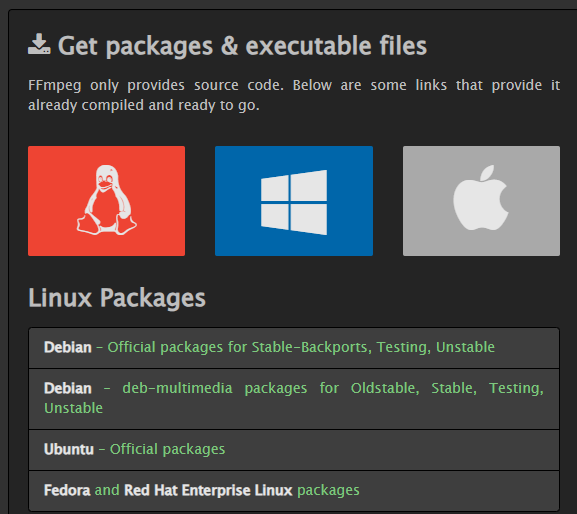
Download the ffmpeg version for your os here
Make sure to follow a link under Get Packages and Executable Files, Follow the path for your OS.
-
For example Windows
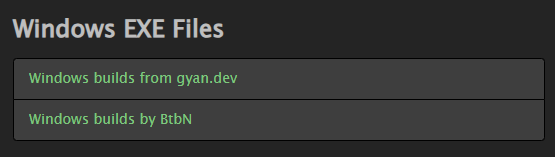
There will be some download links that appear. Pick one and download it.
-
Download Options
There are a couple of targets you can pick for windows, lets try this one and download the Full version.


-
Extract
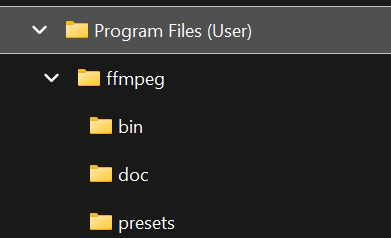
You can unzip this anywhere you like, but I found this location works pretty well and is easy to find later. Make sure to rename the extracted folder to "ffmpeg".
Create a folder on your system drive like this: C:\Program Files (User)\ffmpeg
-
You're done
You've made it this far, congratulations.
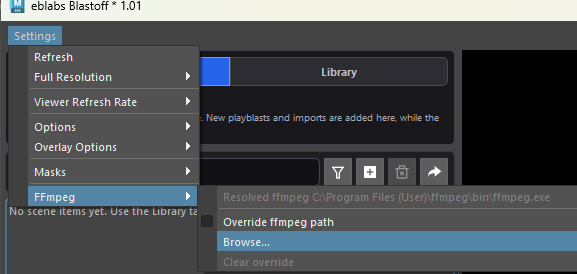
From here you can select the ffmpeg executable from directly within the Blastoff setup dropdown.
-
Happy Playblasting

Advanced Windows Install (Optional)
If you would like to go a step further and add ffmpeg to your system environment on Windows.
-
Add Environment Variables
ffmpeg is just a zipped package of files, unfortunately it doesnt come with a nice installer. To make it visible on your system, we need to add it manually.
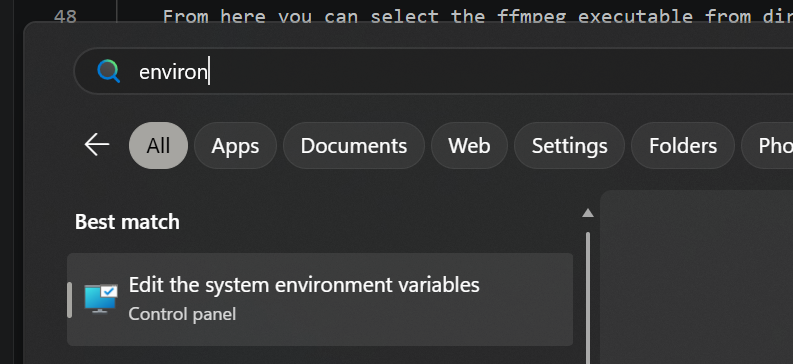
First hit the Windows key and search for "environment", you'll find:
Edit the System Environment Variables
-
Add Environment Variables
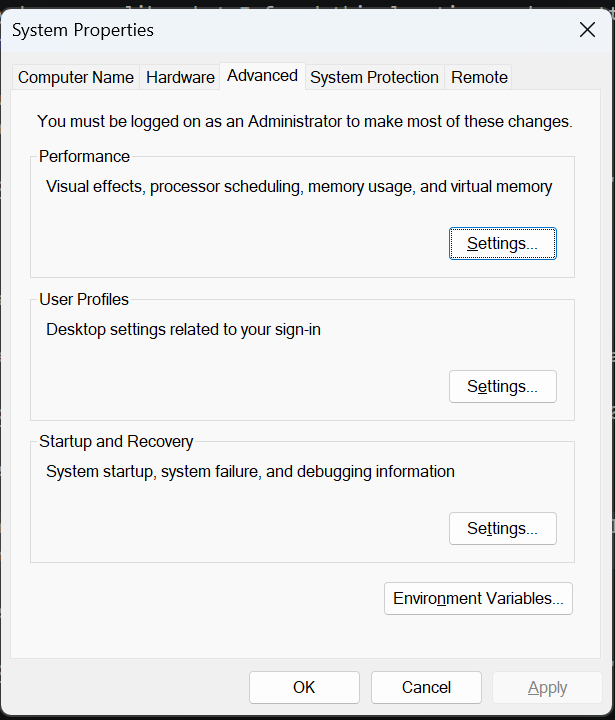
From the System Properties, go into Environment Variables
-
Add Environment Variables
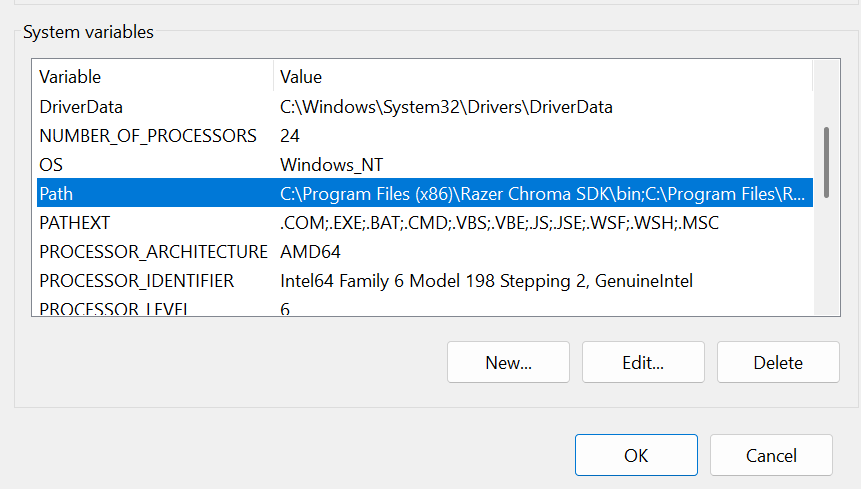
Select the Path in the lower section and click Edit
-
Add Environment Variables
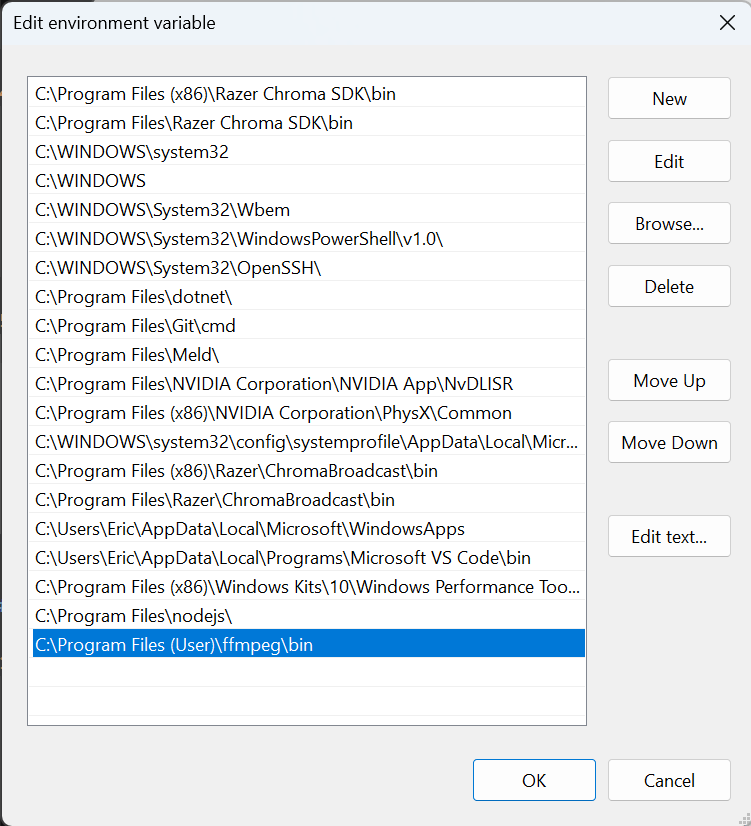
From here you can add in your ffmpeg path.